In Part 1 we covered how to set up and run a preflop simulation. Once you have a solid preflop sim saved, the natural next step is to start building flop simulations for specific spots and board textures. Flop sims allow you to understand how different board types should be played and what ranges are doing what.
This guide walks through the complete process of setting up and running a flop simulation, including how to extract the correct ranges directly from your preflop sim.
The most efficient workflow is to run two separate instances of MonkerSolver at the same time — one with your loaded preflop sim, and one for building your new flop tree. Open the first instance and load your saved preflop sim. Open the second instance and use that to build your new flop tree.
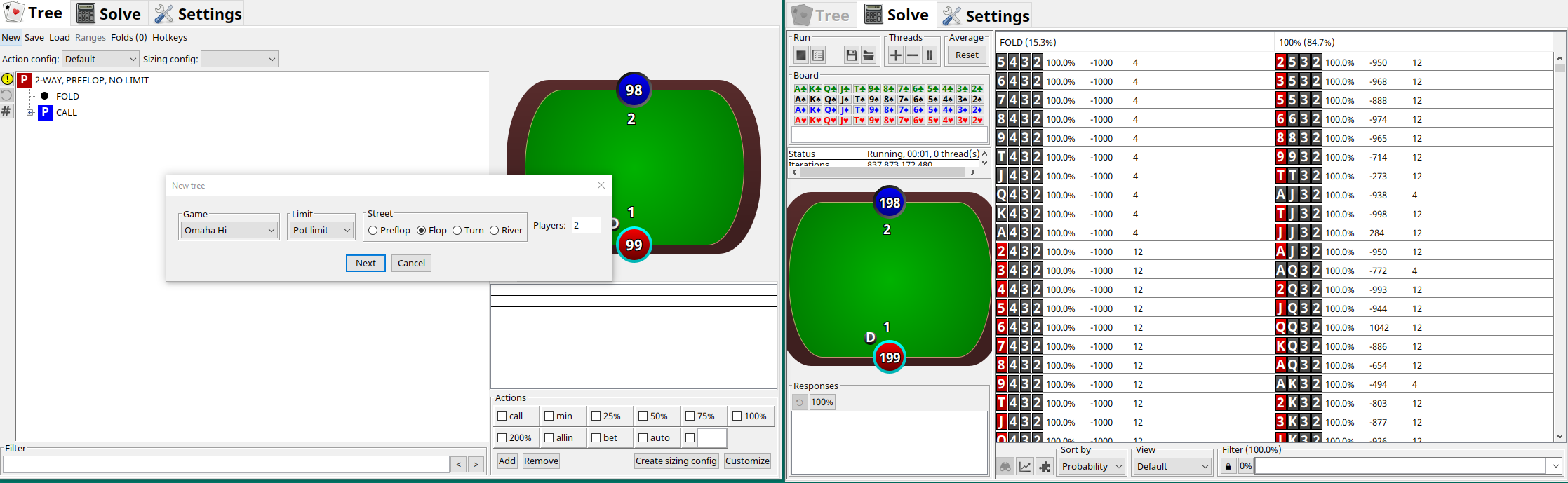
Figure 1: A preflop sim loaded on the right — this is the starting point for building your flop sims
In the second instance, click New just as we did in Part 1, but this time select Flop as the street instead of Preflop.
Single Raised Pot (SRP)
For a single raised pot at 200PLO with a standard 3bb open raise, the pot on the flop will be 6bb.
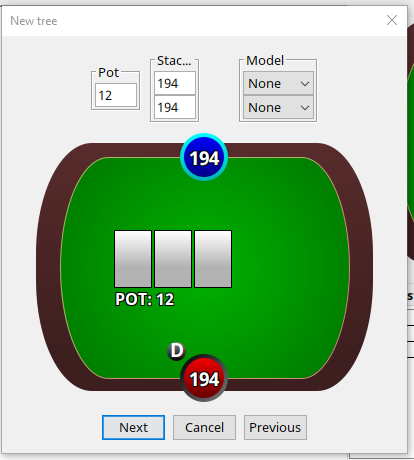
Figure 2: SRP numbers — pot 12, stacks 194
3bet Pot
For a 3bet pot, the pot on the flop will be larger — typically around 18bb at standard sizings. Adjust the pot and stack sizes to reflect the actual state of the game after preflop action.
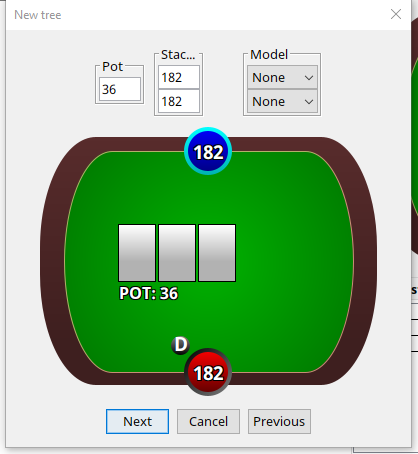
Figure 3: 3bet pot numbers — pot 36, stacks 182
On the final screen of the new tree setup, select 'Create empty tree'. This gives you a blank tree with no bet sizes added yet, so you can configure the sizing structure yourself in the next step.
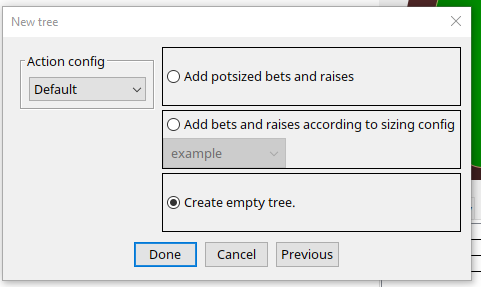
Figure 4: Select 'Create empty tree'
With an empty tree created, right-click on the tree and select 'Add by filter'. This opens the sizing configuration panel where you enter your desired bet sizes as a string.
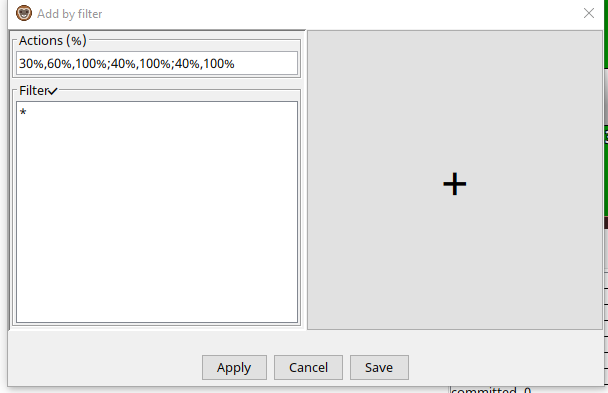
Figure 5: The sizing filter — a good starting point for most flop sims
A good general starting point for most flop sims is:
30%,60%,100%;40%,100%;40%,100%
This string tells MonkerSolver to use three initial bet sizes — 30%, 60%, and pot (100%) — and then for any raises to use either a small size (40%) or pot (100%). This three-size structure gives you a solid overview of which sizing each board texture prefers, without making the tree too large to solve in a reasonable time.
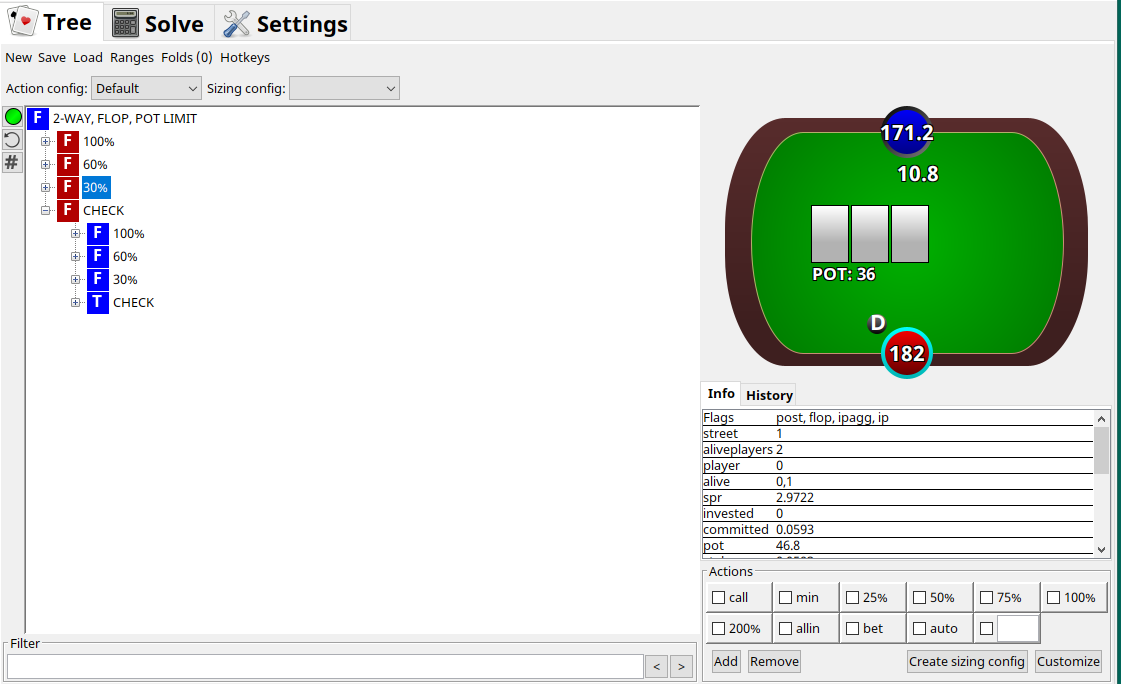
Figure 6: The tree after sizings have been added
Tip: As a general rule: paired boards, monotone boards, and connected straight boards tend to favour smaller sizes. 'Normal' disconnected boards tend to favour medium sizes. You will see this pattern clearly once you have run a few sims and can compare the results.
This is the most important step and is where having two instances open simultaneously makes everything much easier. Click Ranges in the menu bar of your flop tree instance. An empty ranges window will appear with two slots — BTN (IP player) and BB (OOP player).
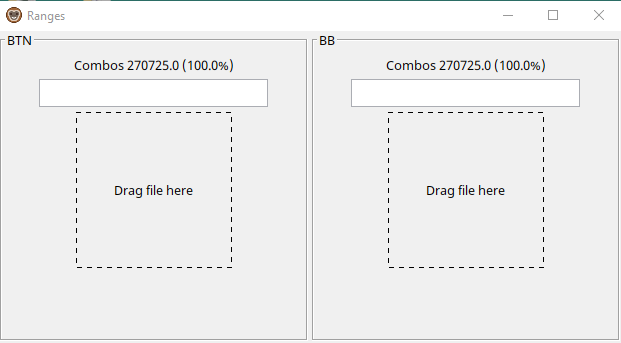
Figure 7: The empty Ranges window — both slots need to be filled from the preflop sim
Loading the OOP (BB) Range
Switch to your loaded preflop sim instance. Navigate to the relevant preflop node — the point where IP has raised and OOP is facing the decision.
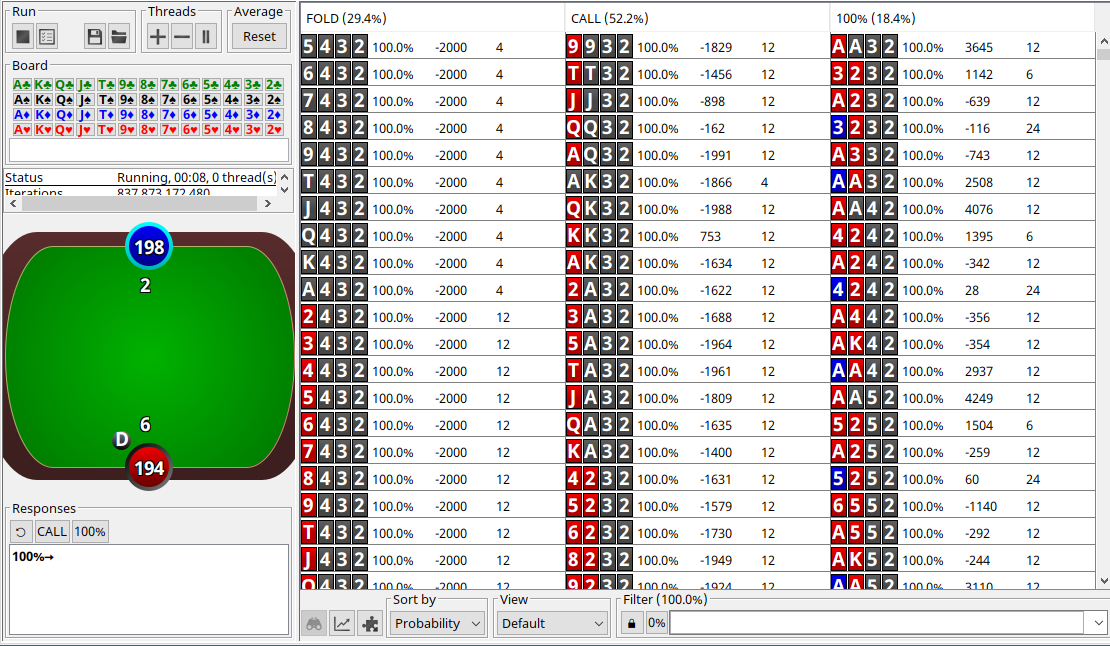
Figure 8: The loaded preflop sim — IP has raised and OOP is to act
Find the 100% range column for the 3bet action — this is the full range BB is going to 3bet with. Right-click and copy to clipboard in PPT format.
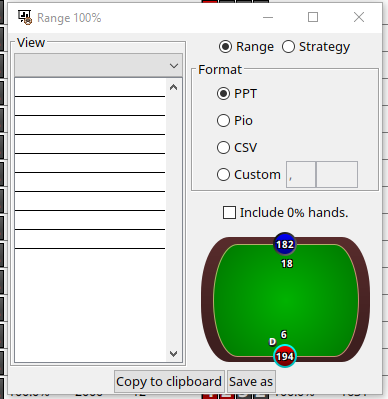
Figure 9: Right-click the 3bet range and copy to clipboard in PPT format
Switch back to the flop tree instance, open the Ranges window, and paste the copied range into the BB slot.
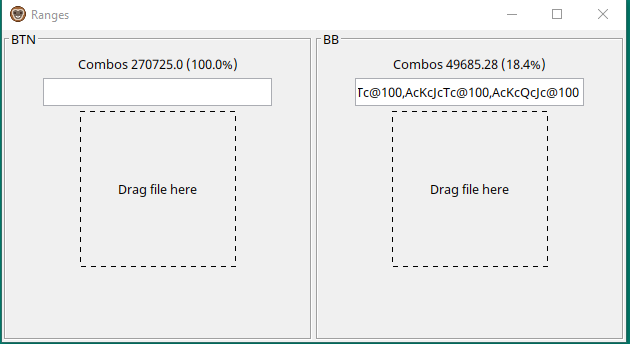
Figure 10: The OOP 3bet range pasted into the BB slot
Loading the IP (BTN) Range
Go back to the preflop sim and navigate to the IP calling range — the node where IP is facing the 3bet. Right-click the CALL action and copy to clipboard in the same way.
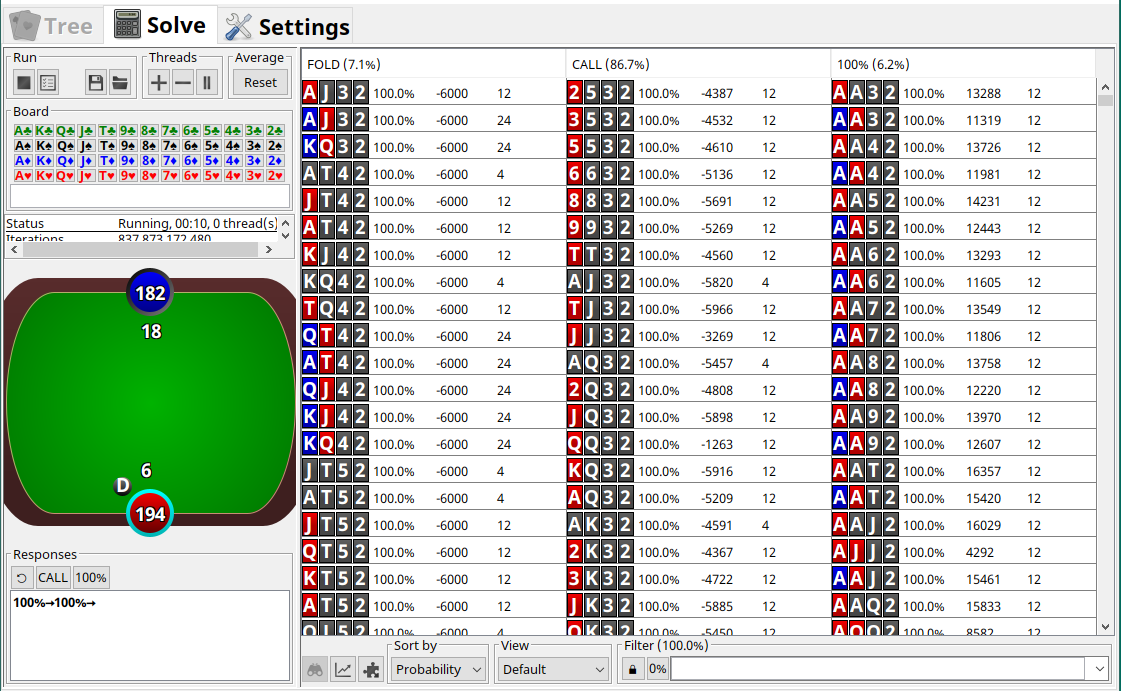
Figure 11: Navigate to the next node to get the IP call 3bet range
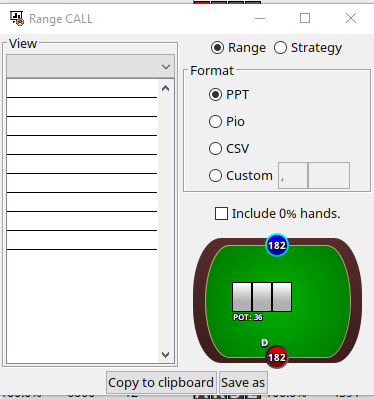
Figure 12: Copy the CALL range to clipboard in PPT format
Why Does the IP Range Show 73.5% and Not 86.7%?
You may notice that the BTN range shows 73.5% of combos even though the call frequency in the preflop sim showed 86.7%. This is not an error — it is because the preflop tree has multiple nodes and the percentages are relative to each node.
To understand this: IP's opening range is roughly 84.7% of all hands. When facing a 3bet, IP calls 86.7% of that opening range. So the actual proportion of IP's total range that calls the 3bet is:
This is correct behaviour. MonkerSolver automatically accounts for the full preflop tree when you paste the range in.
Tip: Always copy ranges from the correct node in the preflop tree. For a 3bet pot you want the IP calling range at the 3bet decision node — not from an earlier or later point in the tree.
Once both ranges are loaded, simply close the Ranges window by clicking the X in the top right corner. There is no save button — MonkerSolver saves the ranges automatically when you close the window. You can verify they saved correctly by reopening the window and checking the percentages are still shown.
Before solving, make sure you have entered the correct rake percentage and rake cap in the settings. These should match the site you play on. As covered in Part 1, for a 200NL simulation a rake cap of 0.75bb (1500 mchip) at 5% rake is typical for a $1.50 cap site.
With the tree configured, ranges loaded, and rake set, navigate to the Solve tab, select the three flop cards you want to study, then click the triangle play button to start the simulation.
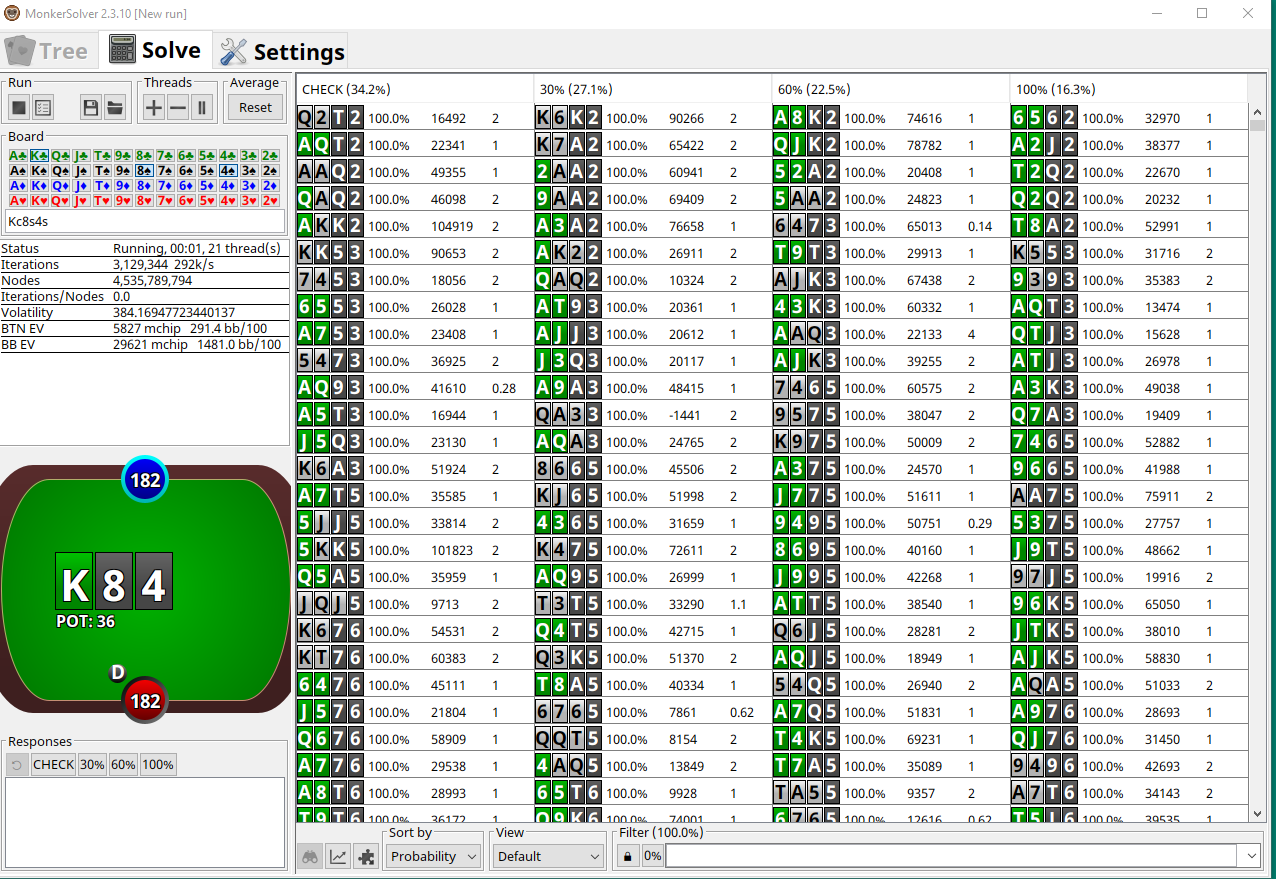
Figure 13: Both ranges loaded — BTN 73.5% (IP calling range), BB 18.4% (OOP 3bet range)
The solve interface will look familiar from Part 1 — you will see the volatility figure decreasing as the solution converges. Aim for a volatility of around 2.0 for a solid result. A flop sim typically solves faster than a preflop sim since the tree is smaller.
One important step: click the Reset button at least once during the run, usually around 3 to 4 hours in. This resets the iteration counter and helps MonkerSolver converge more efficiently to an accurate solution.
Tip: Run each flop sim to around 2.0 volatility and remember to hit Reset at least once during the solve — usually 3–4 hours in. This noticeably improves the final accuracy.
What's Next?
Once you have run a few flop sims you will start to see patterns — which board types prefer small bets, which prefer larger, and how different ranges interact with different textures. In Part 3 we will look at turn and river sims.
← Back to News