In Parts 1 and 2 we covered how to run preflop sims and how to set up individual flop simulations. Running flop sims one board at a time is fine for studying specific spots in detail, but it quickly becomes impractical if you want to survey a large number of boards — for example, all paired boards in a 3bet pot.
MonkerSolver's scripting tool solves this problem. It allows you to queue up an entire list of boards and run them automatically in sequence, each using the same tree structure. You can leave the PC running for a few days and come back to find a full set of solved boards ready to study. This is an extremely powerful feature for anyone doing serious board texture analysis.
The first thing you need is a text file containing the list of flop boards you want to solve. Each board is written as a sequence of card abbreviations — rank followed by suit — with boards separated by commas.
For example, if you want to study all paired boards in a 3bet pot, you would compile a list of every relevant paired flop texture. A useful approach is to group boards by texture type so you can use a single appropriately-sized tree for the whole batch:
- Paired boards (e.g. AsAdJs, KsKdAs...)
- Monotone boards (e.g. AsKsQs, JsTs9s...)
- Two-tone connected boards
- Rainbow disconnected boards
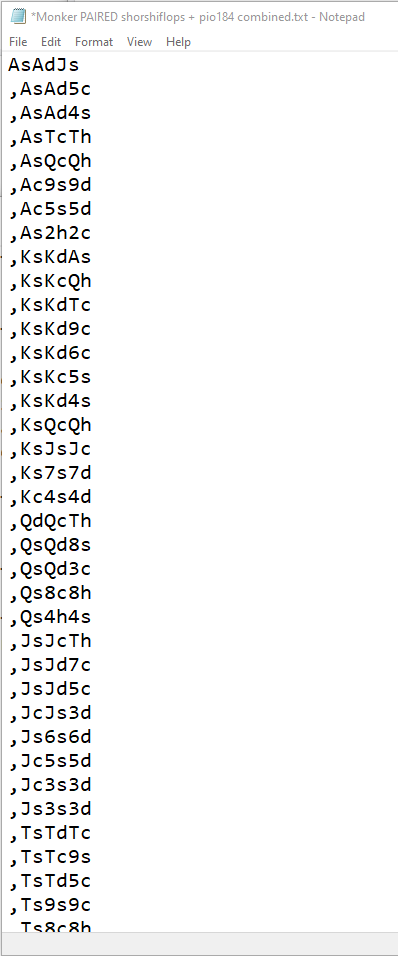
Figure 1: An example list of paired boards — each board separated by a comma
Tip: Grouping boards by texture before running the script means you can use a properly calibrated tree for each group. Paired boards favour small sizes, so use a tree with only a small sizing for those.
The scripting tool applies a single tree structure to every board in your list. This means the tree you use needs to be appropriate for all the boards you are planning to solve — which is why grouping by texture first is so important.
As a practical example: if you are running paired boards in a 3bet pot, you would build a tree that uses smaller bet sizes (30%) without a pot-sized bet, since MonkerSolver will never want to use pot-sized bets on paired boards.
Once your tree is built and the ranges are loaded (as covered in Part 2), go to Save in the Tree menu.
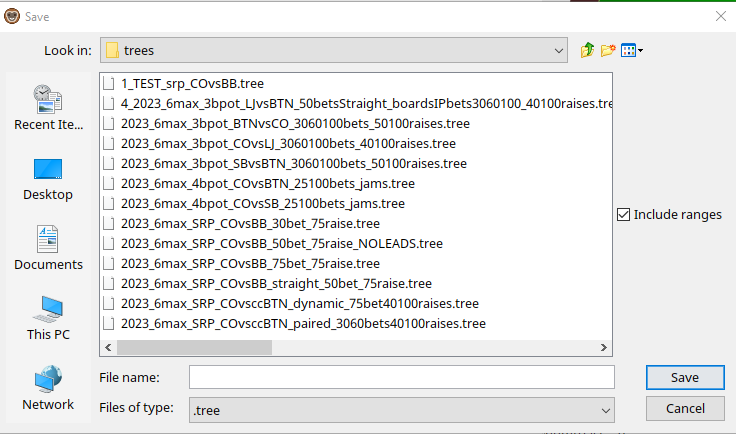
Figure 2: The tree save dialog — name your file clearly so you can identify it later in the scripting tool
Give your tree a descriptive name that identifies the pot type, texture, and sizing structure — for example: 2023_3bpot_paired_3060bets_40100raises. This naming convention makes it easy to select the right tree when setting up the script.
Important: When saving the tree, make sure 'Include ranges' is ticked. Without ranges saved into the tree file, the scripting tool will have nothing to work with and the script will fail to run.
With your board list and tree saved, open the scripting tool. In MonkerSolver go to the Solve menu and look for the Scripting option. This opens the scripting configuration dialog.
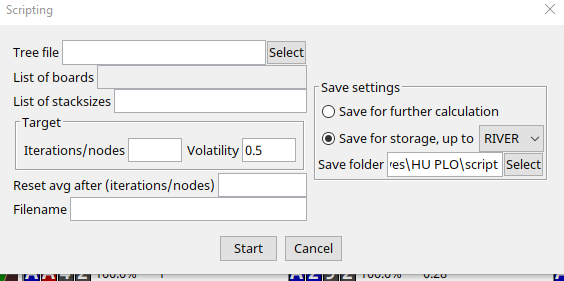
Figure 3: The MonkerSolver scripting dialog — configure each field before clicking Start
Fill in the fields as follows:
- Tree file — click Select and navigate to the .tree file you saved in Step 2
- List of boards — paste in your board list or point to the text file you prepared in Step 1
- List of stacksizes — leave this at the default unless you are running multiple stack depths
- Volatility — set to 2.0 for a solid accuracy level (same target as manual sims)
- Reset avg after iterations — set this to 7. This tells MonkerSolver to reset the averaging counter every 7 iterations, which helps the solver converge more efficiently
- Save folder — choose a folder where the solved results will be saved
- Filename — give the output files a base name so you can identify the batch
Tip: Setting 'Reset avg after iterations' to 7 is important — it resets the running average periodically during the solve, producing more accurate results than letting the average accumulate from the very start. This is the equivalent of manually clicking Reset during a solo flop sim.
On the right side of the scripting dialog you will see the Save settings section. You need to decide whether to save just the flop, flop and turn, or all three streets. Unlike when saving a preflop sim (where saving as PRE was recommended), for flop sims you generally want to save just the flop — the sim becomes less and less accurate on later streets. You can save full sims up to river but understand they are not as accurate as saving flop sims and then running turn and river sims separately as covered in Part 4.
Note: Make sure the Save folder path is correct and has enough disk space — a large batch of flop sims saved to river can take up significant storage. Also: if you close and reopen the scripting menu, the save folder resets to default. You will need to set it again each time.
Once everything is configured, click Start. MonkerSolver will begin solving each board in your list sequentially, saving the results to your chosen folder as each one completes. You can leave this running overnight or across multiple days depending on how many boards you have queued.
Each individual board sim will run to your target volatility of 2.0 before moving on to the next one. The reset averaging is handled automatically — you do not need to intervene manually during the script run.
Why the Scripting Tool Is So Valuable
Running individual flop sims manually is time-consuming and limits how much you can study. The scripting tool changes this completely. Some practical uses:
- Survey all paired flops in 3bet pots to understand how IP and OOP ranges interact with different paired board textures
- Run all monotone flops to see if there is any difference between A-high monotone and low monotone boards
- Compare how the same range matchup plays on high, medium, and low boards to understand range interaction
- Build a reference database of solved flops that you can return to repeatedly as part of your study routine
The key insight is that by grouping boards by texture and using appropriately calibrated trees, you get accurate and comparable results across a large sample. Once you have a library of solved flops you can start to identify patterns — which boards prefer small bets, which generate more raises, how SPR affects the preferred sizing — and apply those patterns directly to your in-game decision making.
← Back to News