In the previous parts of this series we covered preflop sims and flop sims. The next step is taking those flop solutions deeper — running turn and river simulations to understand how ranges continue and to look for trends.
There are two distinct approaches to turn and river sims in MonkerSolver, and each serves a different purpose. The first is a targeted sim for a specific turn card on a specific board — useful when you want to study a particular spot in detail. The second is a clever trick that solves all turn cards simultaneously — an enormous time saver when you want a broad overview of how a flop scenario plays out across many runouts.
Two Methods: Method 1 — Single turn card: detailed, accurate, best for specific hand analysis. Method 2 — All turns at once: broader overview, much faster overall.
Best for: studying a specific hand or spot in detail
This method is the right choice when you have a specific spot you want to study in depth — for example, you played a hand in a 3bet pot, the board was 9-8-3 rainbow, it went check-check on the flop, and you want to know whether you should be betting the turn as the OOP player when a 6 falls.
Setting Up the Tree
Open two instances of MonkerSolver as usual — one with your flop sim loaded, one for building the new tree. The pot size and stack sizes should reflect the state of the game at the point you are studying. In this example — a 3bet pot that checked through on the flop — the pot remains 36 and the effective stack is 182. Create a new empty tree and add your bet and raise sizings just as you did for the flop sim.
Loading the Ranges
Navigate to the point in your flop sim that corresponds to the flop action — in this case the check-check line — and copy the ranges for both players from that node.
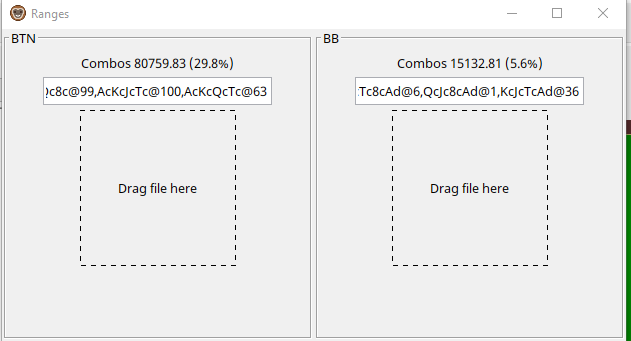
Figure 1: Ranges loaded from the flop sim for the turn tree — BTN 29.8%, BB 5.6%
The combo counts will be lower than the original preflop ranges since we are now looking at a subset of hands — only those that took the check-check line on the flop. This is expected and correct. Close the Ranges window once both are loaded.
Tip: Always pull turn ranges from the flop sim at the correct node — the node that matches the exact line you are studying. If the flop went OOP bet and IP call, use the ranges at the bet and call nodes.
Selecting the Board and Running
Go to the Solve tab, enter the full board including the turn card — in this example 9c8h3d6s — then click the play button to start the sim. Before starting, make sure your rake percentage, rake cap, and thread count are all correctly set.
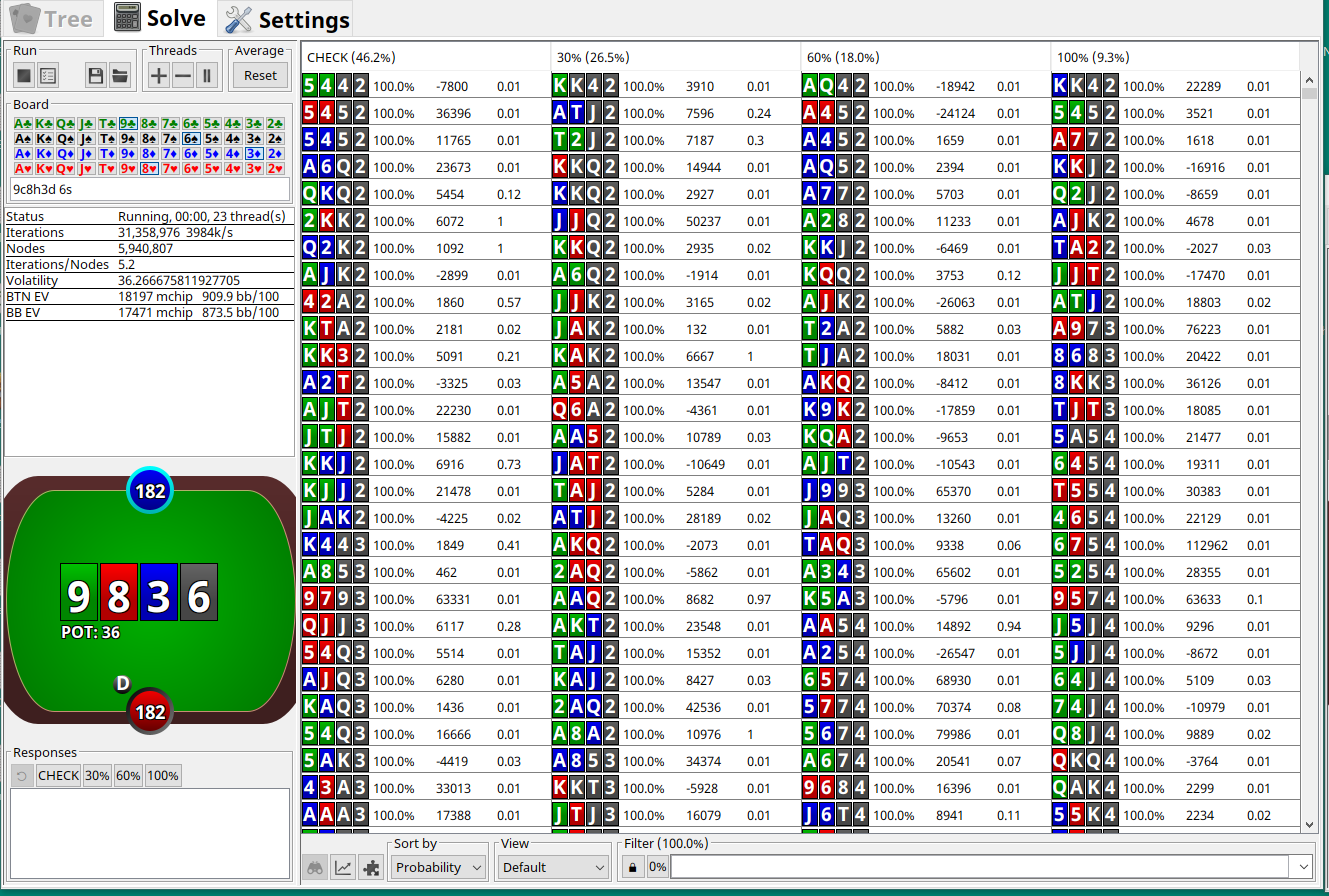
Figure 2: The sim running on the 9c8h3d 6s turn — solving this specific runout plus all river cards
This sim will solve the chosen turn card and all possible river runouts from that point. It is significantly faster than a flop sim because the tree is smaller — you can often get a usable result in well under an hour or two.
Speed Tip: Let the sim run for 5–10 minutes and check which bet sizes are actually being used. If MonkerSolver is barely using the 30% size at all, stop the sim, remove that sizing from the tree, and restart. Running with fewer active sizes produces cleaner, more accurate results and solves faster.
Best for: a broad overview of how a flop scenario develops across all runouts
This is one of the most useful tricks in MonkerSolver and a significant time saver. Instead of running a separate sim for each possible turn card, this method solves all of them in a single run. It sounds counterintuitive at first, but the logic is straightforward once you see it in action.
The Setup
Create a new tree, but this time select Flop as the street — not Turn. Yes, we are running a turn sim but we are telling MonkerSolver it is a flop sim.
The pot size and stack sizes should reflect the state of the game after the flop action has completed. For example, if OOP potted the flop and IP called in a 3bet pot scenario, the pot on the turn would be 108bb with effective stacks of 146bb. Enter these values.
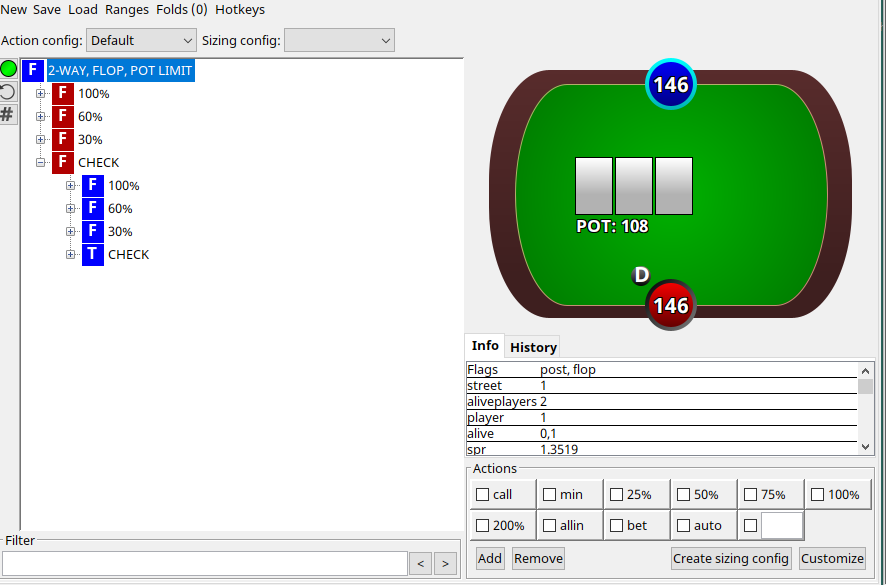
Figure 3: The tree set up as a 'flop' sim with pot 108 and stacks 146 — this is actually a turn sim in disguise
Loading the Correct Ranges
Load the ranges from your flop sim at the node that corresponds to the flop action taken. In this example — OOP pots, IP calls — navigate to those two nodes in your flop sim and copy both ranges.
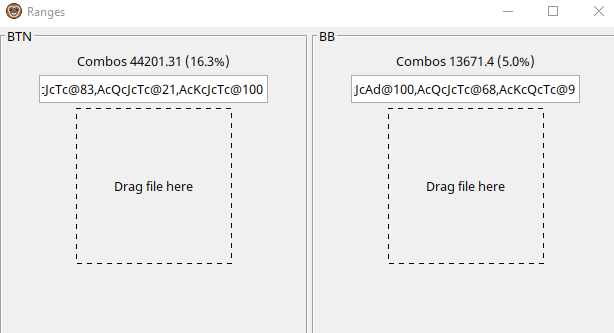
Figure 4: Ranges loaded for the all-turns sim — BTN 16.3%, BB 5.0%, reflecting the bet-call line on the flop
The Trick: Force Check-Check on the Flop
Here is the key step that makes this work. Once your tree is built and ranges are loaded, you need to force the sim to check through on the flop — meaning no bets or raises are allowed from either position. You do this by removing all bet options from the flop node.
What this achieves is that MonkerSolver will treat the flop check-check as mandatory, and then solve all the action that follows — which is actually the turn — for every possible turn card in sequence, since MonkerSolver deals out all possible runouts when a full board is not specified.
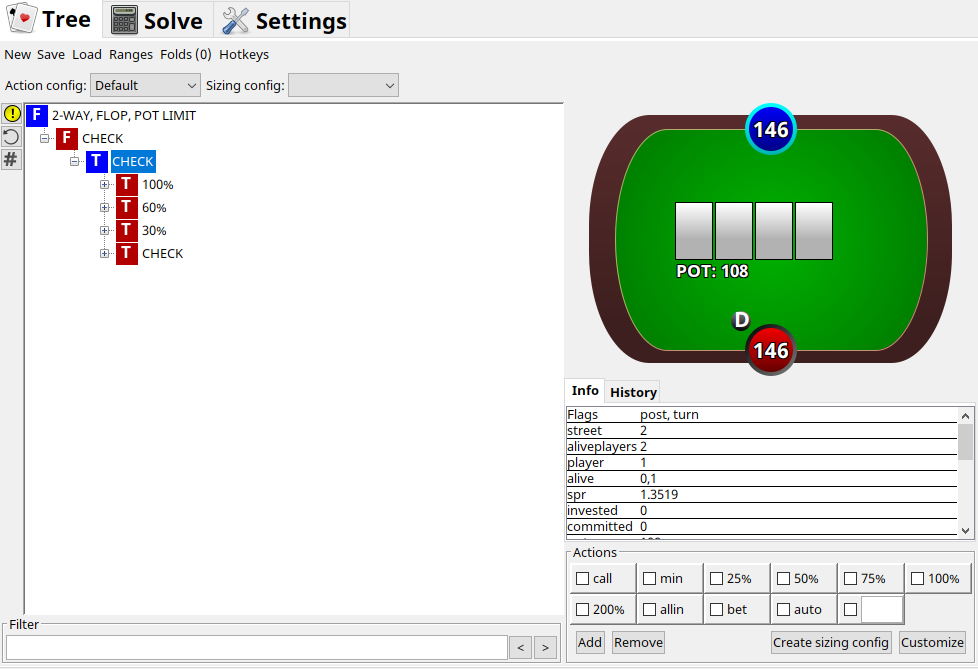
Figure 5: The tree with only CHECK available on the flop — this forces MonkerSolver to solve the turn for every possible runout
Tip: The flop check-check forces MonkerSolver to skip straight to the turn action. Since no board is specified beyond the flop cards, it iterates across all possible turn cards automatically. This is the trick that makes the all-turns method work.
Running the Sim
With the tree configured, ranges loaded, and flop betting removed, go to Solve and run the sim. Enter the three flop cards (e.g. 9c8h3d). Make sure you use the same suits as you used in your flop sim — it has to match exactly.
Run this to around 2.0 volatility and hit Reset a few times during the solve, just as with any other sim. When complete, you can browse through every possible turn card and see how the strategy changes — which turns favour betting, which favour checking, and how the preferred sizing evolves. This is an extremely powerful tool for building a deep understanding of how turn play develops from a given flop situation.
- Use Method 1 (single turn card) when you have a specific hand history you want to analyse and you want it fast.
- Use Method 2 (all turns) when you want a broad overview of how a flop scenario develops and you don't mind waiting many hours.